
Calendar
Calendar app provides a user-friendly solution for streamlined meeting management while enhancing productivity.
There are a few ways to open Calendar:
- By opening the Calendar module. This allows us to see our personal calendar and create events.
- Directly from the chatter.
For example, in the CRM app, if we click on any record, we will see a form view and a chatter next to it.
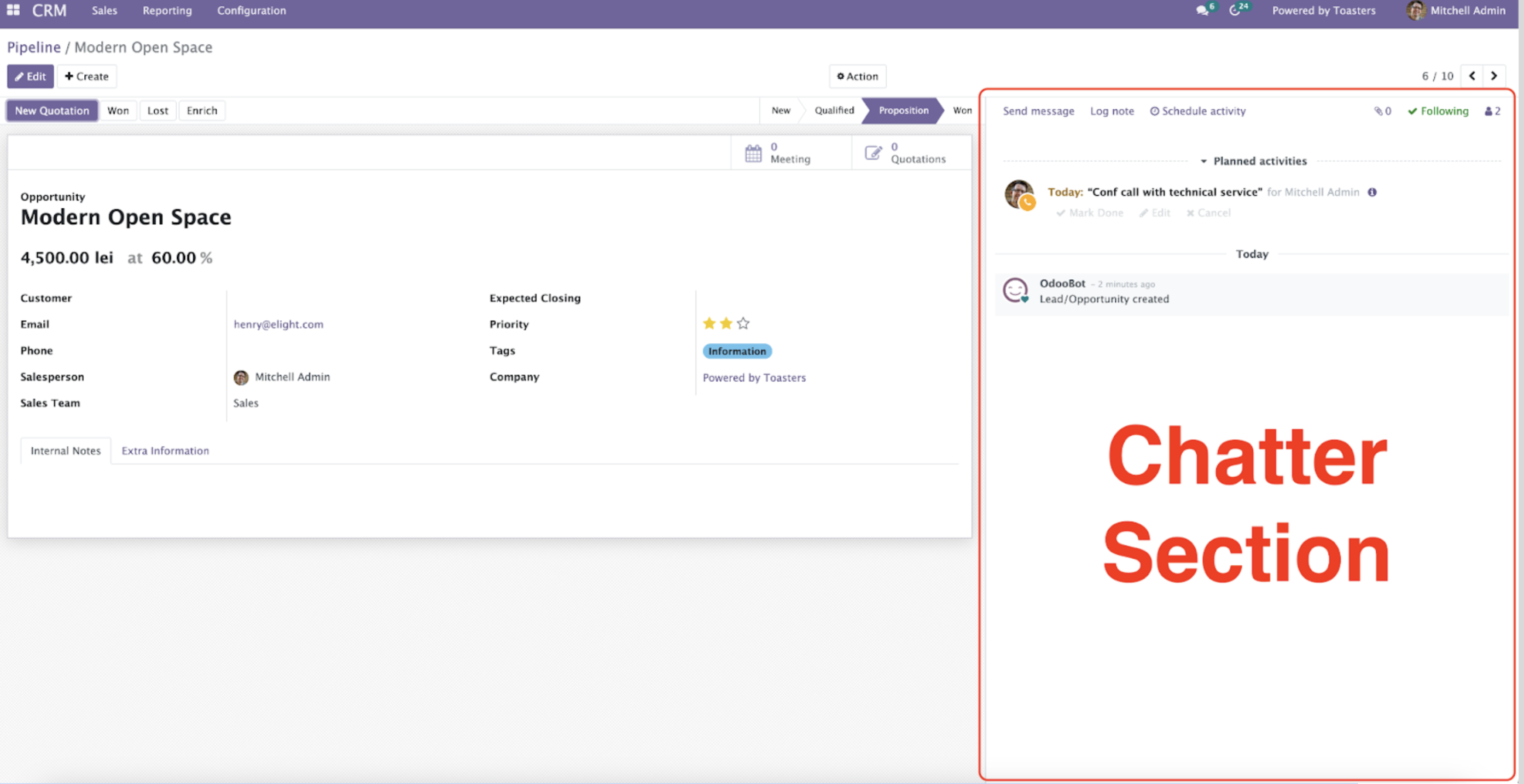
The chatter shows us any updates, messages, logged notes and scheduled activities.
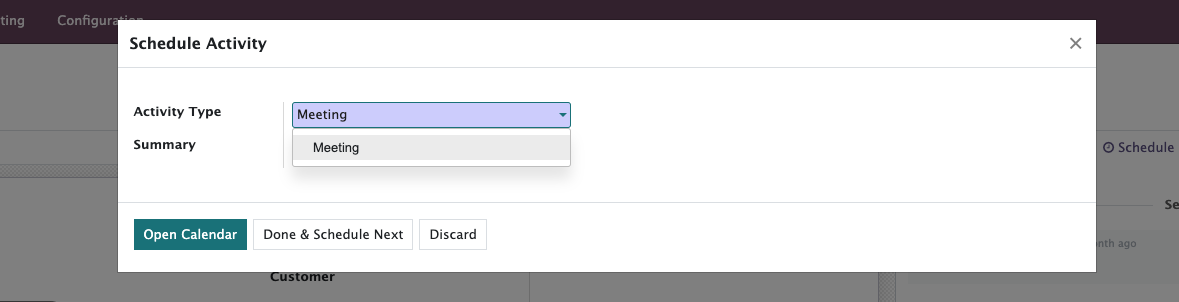
By selecting the Schedule activity button, we can create a new activity. A menu will pop up, where we will need to change the activity type to Meeting. With this done, the interface will change, as the buttons.
Next, we need to click on Open Calendar:
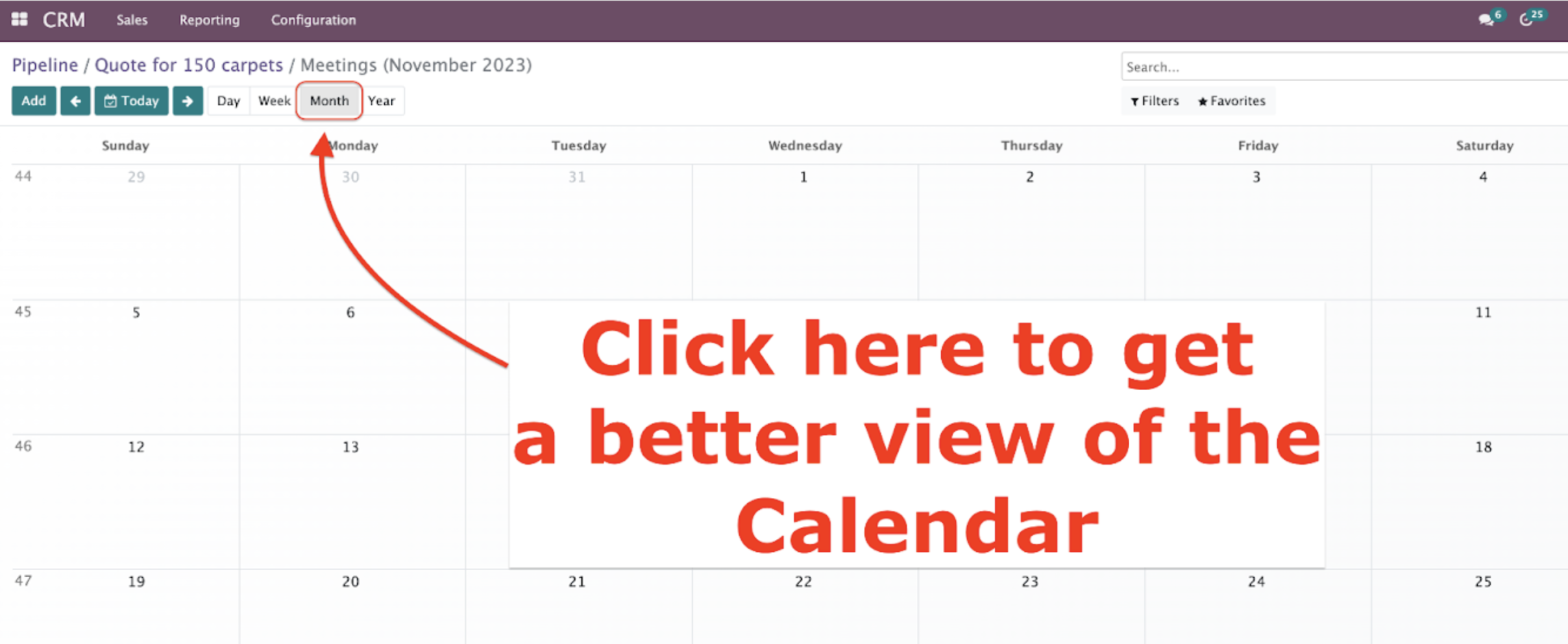
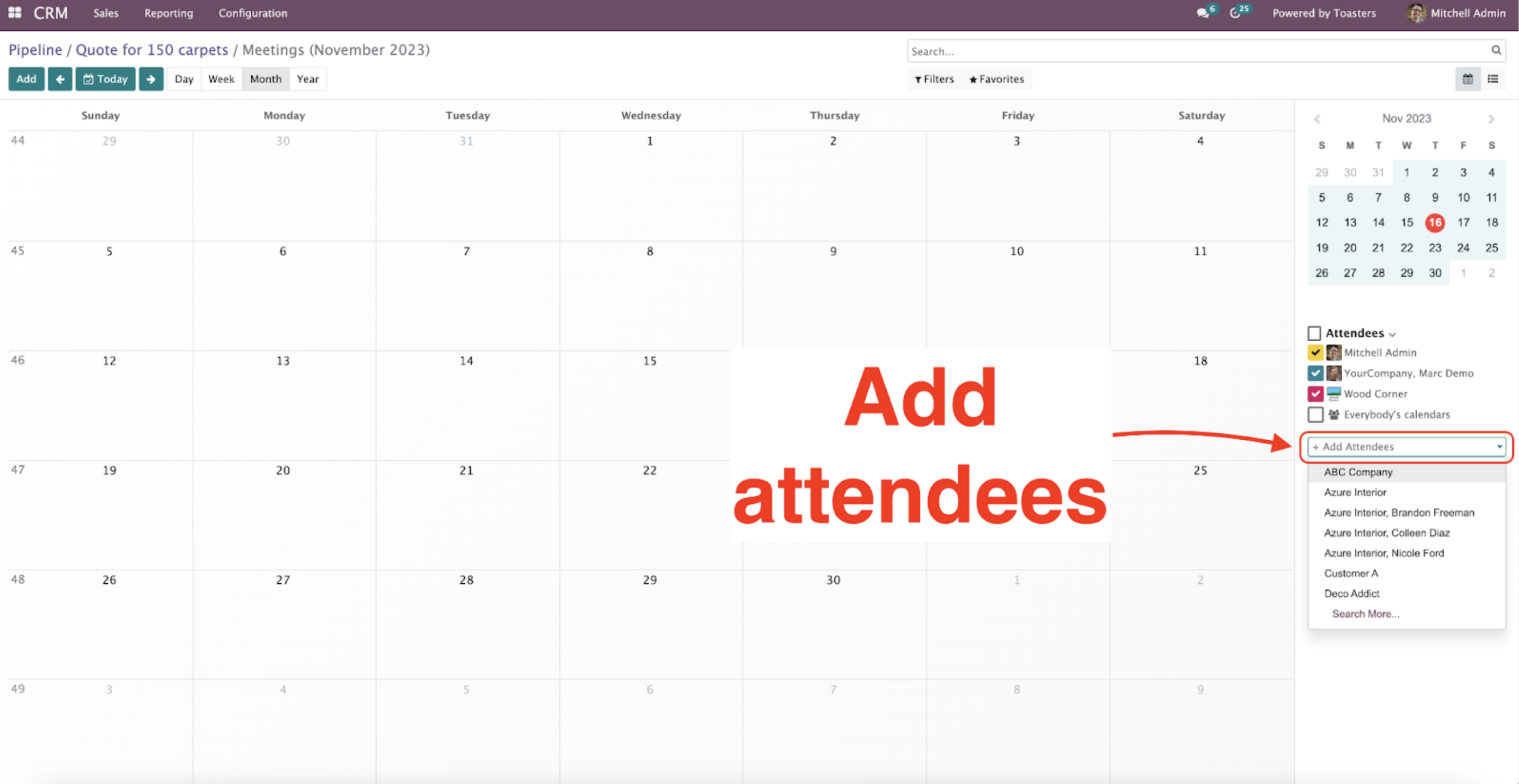
To get a better view of the Calendar interface, we can set to see our activities by Month. From here, we can also add new attendees to the meetings, from the Attendees section.
How to create a new meeting?
- By clicking on the Add button.
- By clicking on a free slot on the Calendar interface
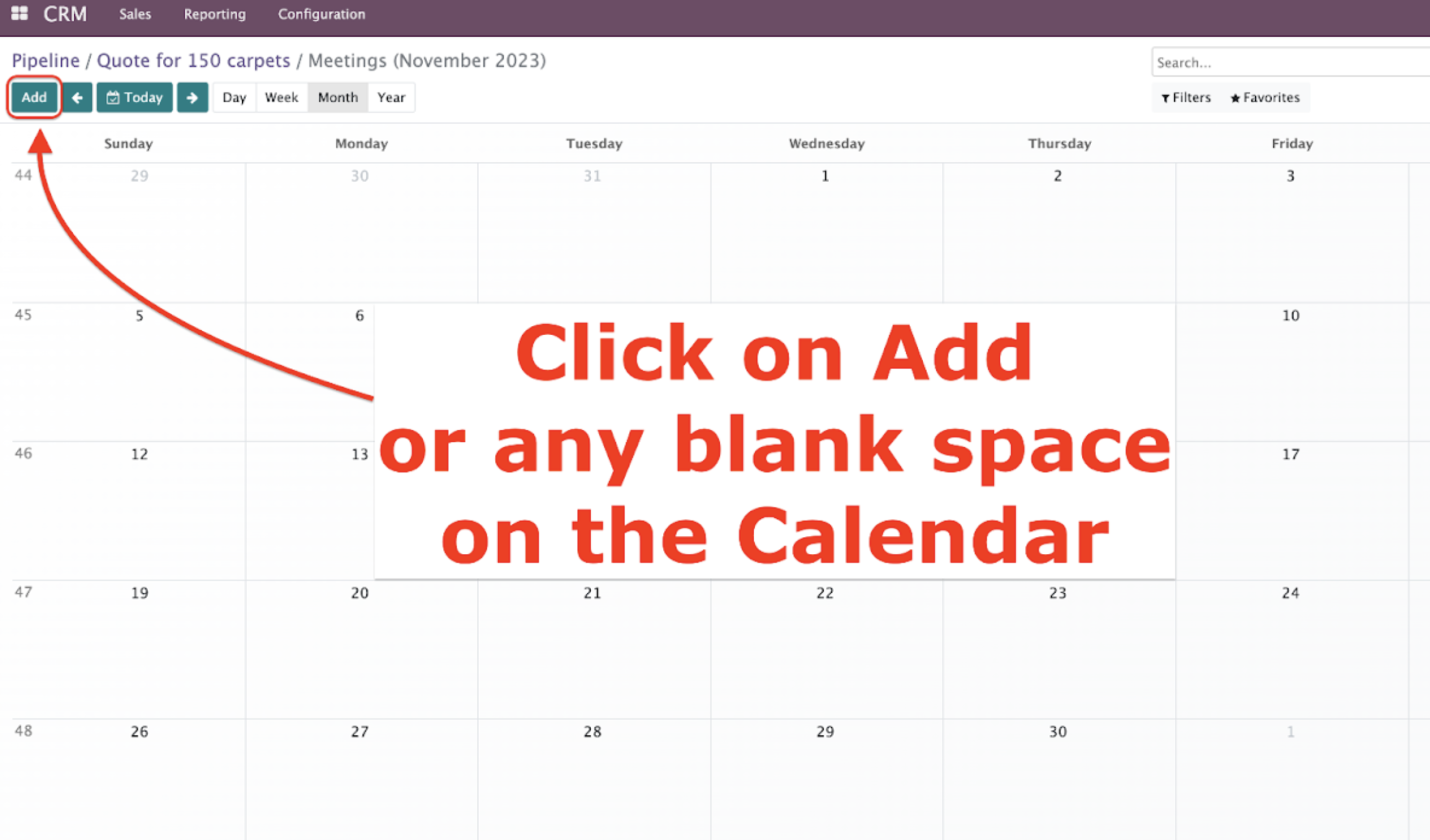
After adding the meeting subject and clicking on Create, we will notice that the event was created right in the time slot selected before.
How to add attendees to the meeting?
Click on the newly created event ➩ Edit ➩ Attendees field ➩ Add your desired contacts.
Meeting Options:
In the Meeting Details, we can edit the starting and ending times for our event, by modifying the Starting at and Ending at fields.
We can also automatically update the time when modifying the Duration and set a Location of the event if needed.
If this is an online meeting, you can add a link to a video call, right from this menu (Meeting URL).
We can also set tags or reminders for our meetings:
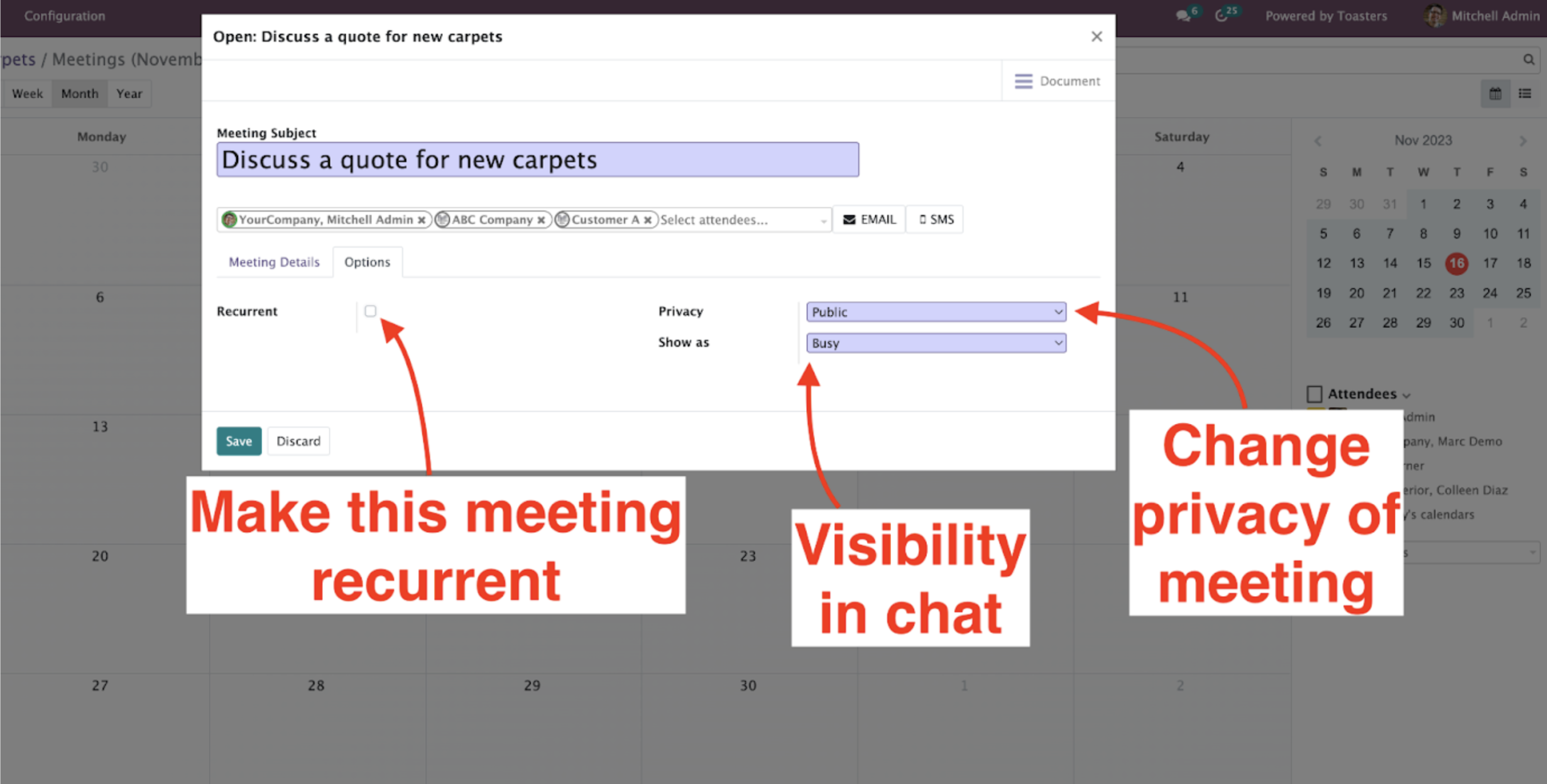
In the Options tab, we can choose to make this meeting recurring by clicking the Recurrent box. From this tab, we can also modify the Privacy or your visibility (Show as) when in the meeting.
Clicking on the Email button will automatically set up an email template with our meeting’s details, ready to send to all the attendees (by clicking Send).
If we click on the event again from the Calendar interface, we will see a summary with all the event’s details. From this pop-up, we can directly Join the video call, Edit, Delete, or Decline the meeting.