
Create Product Template
Inventory app > Configurations > Products > Products
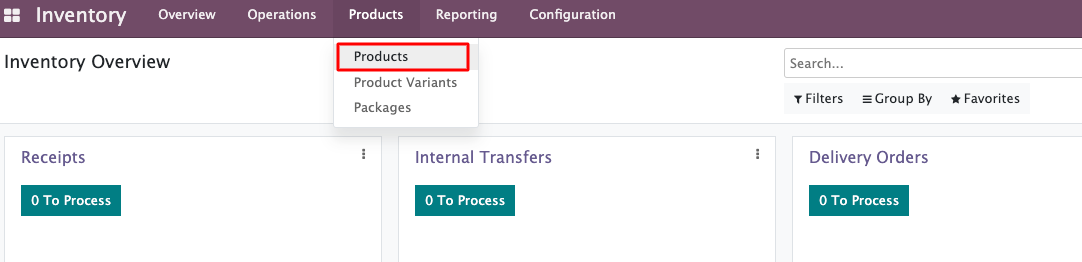
Click "Create" button to create a new Product, this will open product form view:
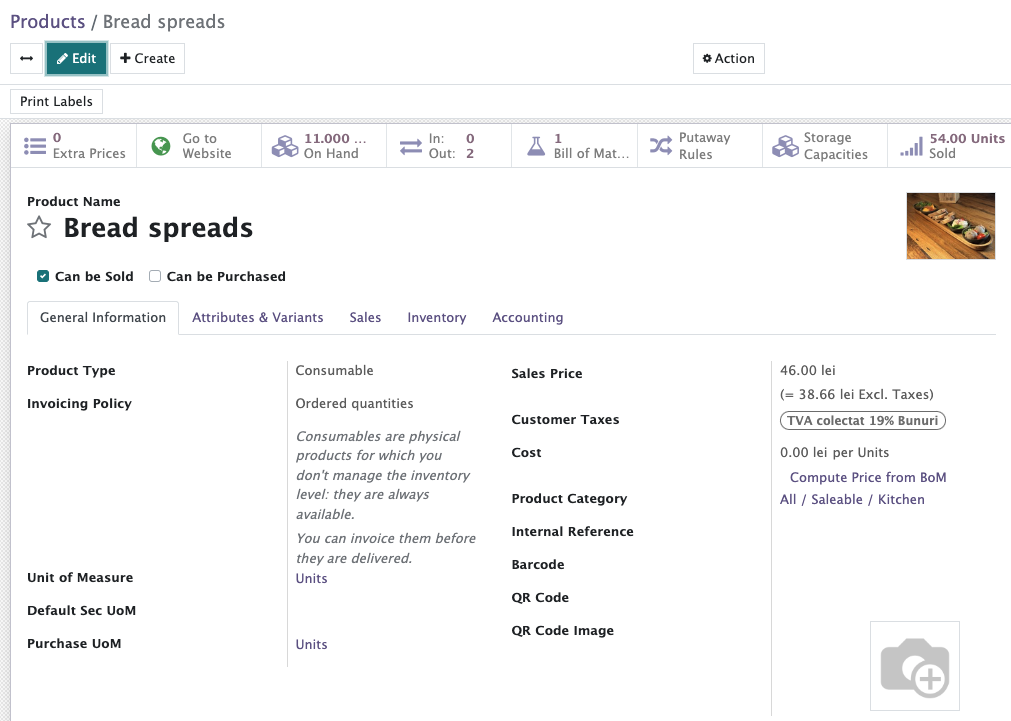
Input next fields:
Product name

Click “Save” button, than add the translation: click on the name of the language next to Product name:

A popup with the language option will be opened:
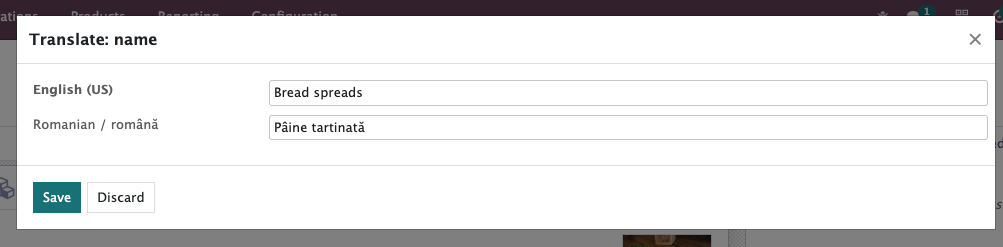
Input the translation text and save the changes.
After the user will choose Romanian language at the user’s profile - all the translations will be displayed at the system.
Can be sold / Can be purchased

Tick the checkboxes according to the type of the product.
For Example: Raw Materials for manufacturing - can be purchased, Final Products for PoS - can be sold, Bottled Products for bar - can be purchased & can be sold.
Product picture
 Hover the image input field to see the options to download or delete the image.
Go through the tabs at the Product template:

“General Information” TAB
Product Type - important field that defines if the product will be tracked at the inventory or not.
- Storable - (tracked stock) This product type is tracked in inventory and will display an "On Hand" smart button with the quantity in stock. You'll be able to adjust inventory, create reordering rules, replenish, etc (f.e. raw materials and the bottled products for bar that have a route “Buy”)
All the Purchased Products should be set as “Storable” (F.e. Raw Materials marked as “Can be purchased” and the bottled products that “Can be Purchased” and “Can be Sold”).

- Consumable.
The Products that are sold in the Restaurant as final dishes and are manufactured from a list of Raw Materials” are not tracked at Stock. They are usually cooked and served at the same day. So for PoS Products we choose “Consumable” type.
Consumable - (not tracked) This product type can be sold and/or purchased and does not track inventory.
Service - the products will not be tracked at inventory.
Gift Card
Invoicing Policy:
- Ordered quantity - select this option to invoice the product when the order is placed by the customer.
- Delivered quantity - select this option to invoice when the product is delivered to the customer.
Unit of measure - the measure by which this item will be counted at inventory.
Default secondary unit - users can select a default secondary unit for the product, but only from the secondary units which are already added to that product (below).
Purchase UoM - convenient only for the Products that “Can be Purchased”. This UoM is usually inherited from the general UoM, or at least have the same category as Default UoM.
Sales Price - allows to set a default sale price for the item that will be reflected at sale orders, at PoS UI, at bills.
Customer Taxes - this field pulls the data from the Accounting/Invoising app to assign a tax rule to the item. We need to choose relevant tax for each product according to the local tax system.
Cost:
- for “Standard price” this field allows to create a fixed cost for the purchase of the item.
- for “Average” and “FIFO (first in first out)” valuations, this field will be updated based on purchasing and other product movements.
We can compute cost from BoM if use next option:

Product Category - choose the appropriate category for this product, it was configured in the previous chapter.
Internal Reference - set a custom unique reference name for the product. This feature makes the interface of PoS more friendly for employees.
It will be used at PoS session settings > PoS Interface Section> checkbox “Enable Simple View”
Internal Notes: Allow your stuff to add internal notes to the product for better communication.
Secondary Unit of Measure: It is an extra measurement unit for a product, used alongside the primary one. It offers flexibility in inventory, purchasing, and sales by allowing transactions in different units:

“Attributes & Variants” TAB

We don’t recommend to create Product Variants from this tab. Here we only choose from the list. More about Product Variants and recommendations on how to create them at DeliPal is here.
“Sales” TAB
Appears only for the Products that “Can be sold”.
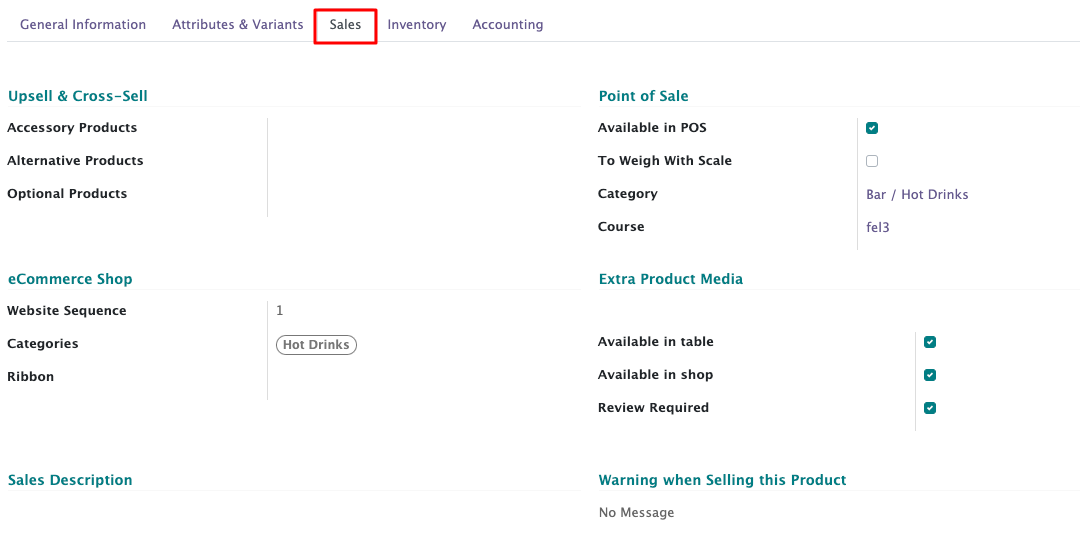
Upsell & Cross-Sell
- Accessory Products: will display the chosen products as suggested when a customer reviews their cart at the website before making payment.
- Alternative Products: will suggest the chosen products for a customer when visiting the product page at the website.
- Optional products: will suggest the chosen products for a customer when “Adding to Cart” or creating a quotation.
Point of Sale
- Available in POS: Enable if you want this product to be visible in Point of Sale (enables automatically “Available in Table” checkbox)
- To Weigh With Scale: Enable if the product should be weighed before purchase (requires appropriate UoM!)
- Category: allows sorting the products by categories at the PoS user interface.
- Course: choose the PoS Product Course - choose the order to serve the product.
Extra Product Media
- Available in table: If enabled, the product will be available at the website for guests to add to an order at the table using their mobile devices. More about guest UI is here. Can be ticked only together with “Available in PoS”.
- Available in shop: If enabled, the product will be available at the website for to-go orders.
- Review Required: Allows you to decide whether or not the product should be ratable (allow or restrict guests to leave feedback for the current Product).
eCommerce Shop
- Categories: allows to set eCommerce categories for which this product will be available (Products without categories will not be displayed at the “Menu” page)
- Out-of-Stock: enable to continue selling the product even if it is out of stock.
- Show Available Qty: if enabled, a second field becomes visible allowing you to determine when available qty shows up on the product page.
- Out-of-Stock Message: Set a message to be displayed when the product is out of stock.
- Ribbon: Adds ribbons to the Product images at the website depending on conditions that can be configured. F.e: New, old, out etc.

Sales Description
Fill input fields with the information to be displayed at the Sales Orders or Invoices.
Warning when selling this Product
Warn the cashier with an internal note.
Glovo Integration: Glovo ID for each product.
Can be obtained through Glovo representatives.
Tazz Integration: Tazz ID for each product , can be obtained from the Tazz restaurant website.

"Inventory" Tab
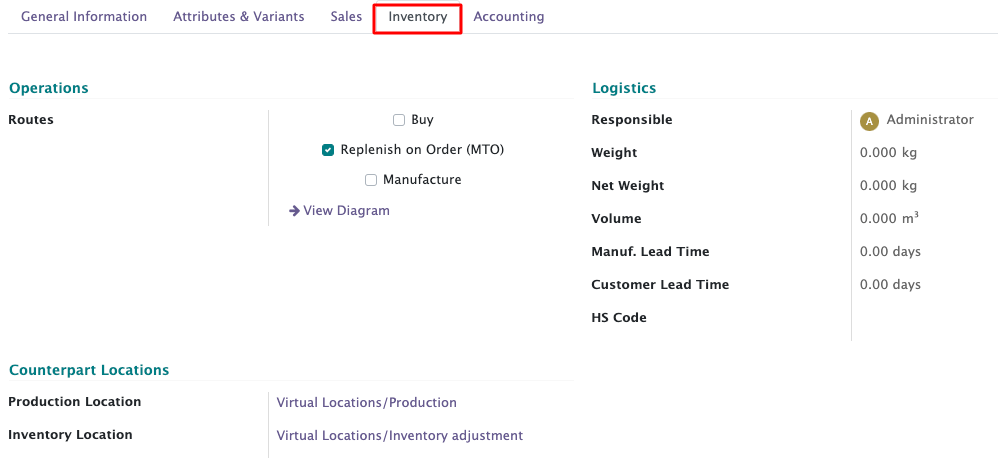
Operations
- Routes - choose the way the Product will appear at stock:
Buy - when the product is ending at stock - the purchase order will be created (Vendors should be set)
Replenish on Order (MTO) - when the product is ending at stock - it will be manufactured according to BoM (BoM should be set)
Manufacture - when the product is ending at stock - it will be manufactured according to manufacturing order (MO should be set)
“Purchase” TAB
Appears only for the Products that “Can be Purchased”.
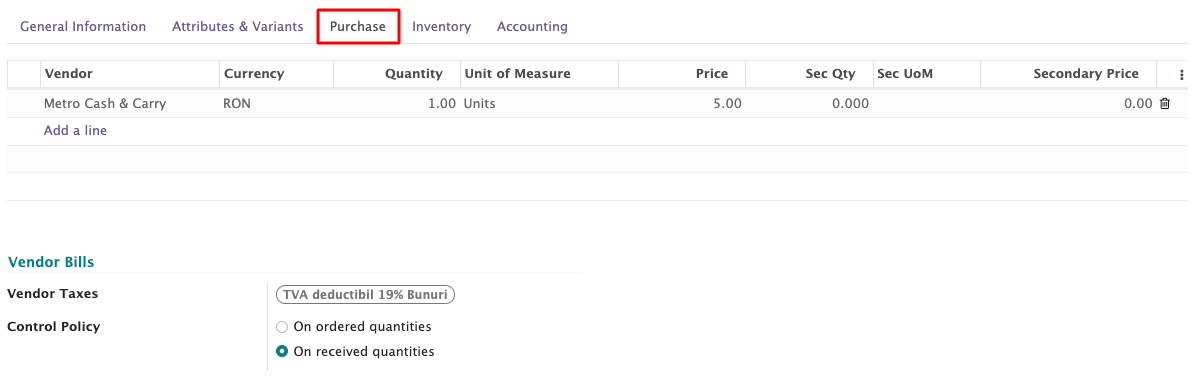
Click “Add a line” to add vendors from which you may purchase this product, along with the agreed-upon prices and quantities.
Vendor Bills
- Vendor Taxes: Choose applicable taxes for this product from the list of existing for the current area.
- Control Policy: Select the method by which control bills are based:
On ordered quantities / On received quantities - depending on the business flow of the company.
- Purchase description - fill input field with the information that should be displayed at the Purchase order.
- Warning when Purchasing this Product - input message for employees with some warning during the purchase process.