
Create Product Categories
Configuring of any Database always starts with creating the products. But we need to prepare Product Categories first. Product Categories will affect Accounting (in case this module is installed), because the accounts, set in configurations, will provide automatisation.
Inventory app > Configuration > Product Categories
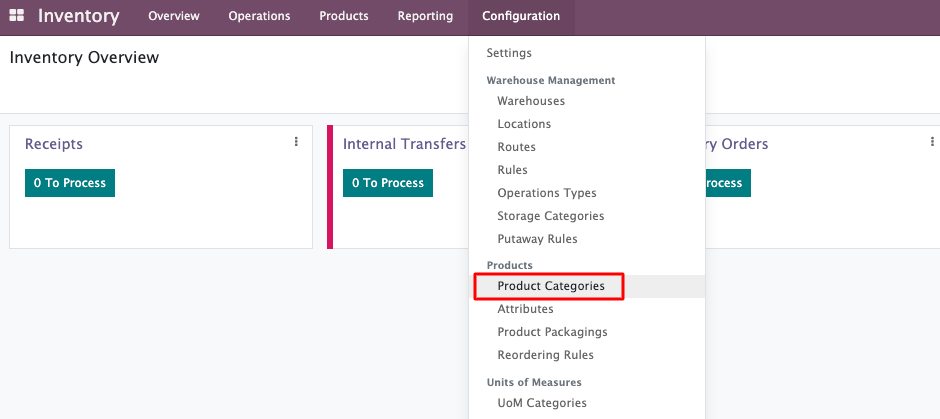
Here we will have parent category “All”. It should be main parent category for all the sub-categories.
Create sub-categories according to the work flow:
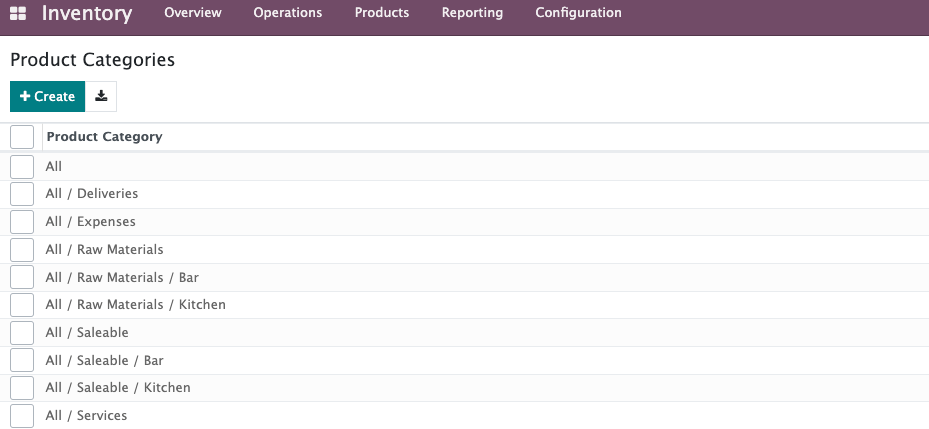
Create subcategories by clicking “Create” button: it will open next creation form:
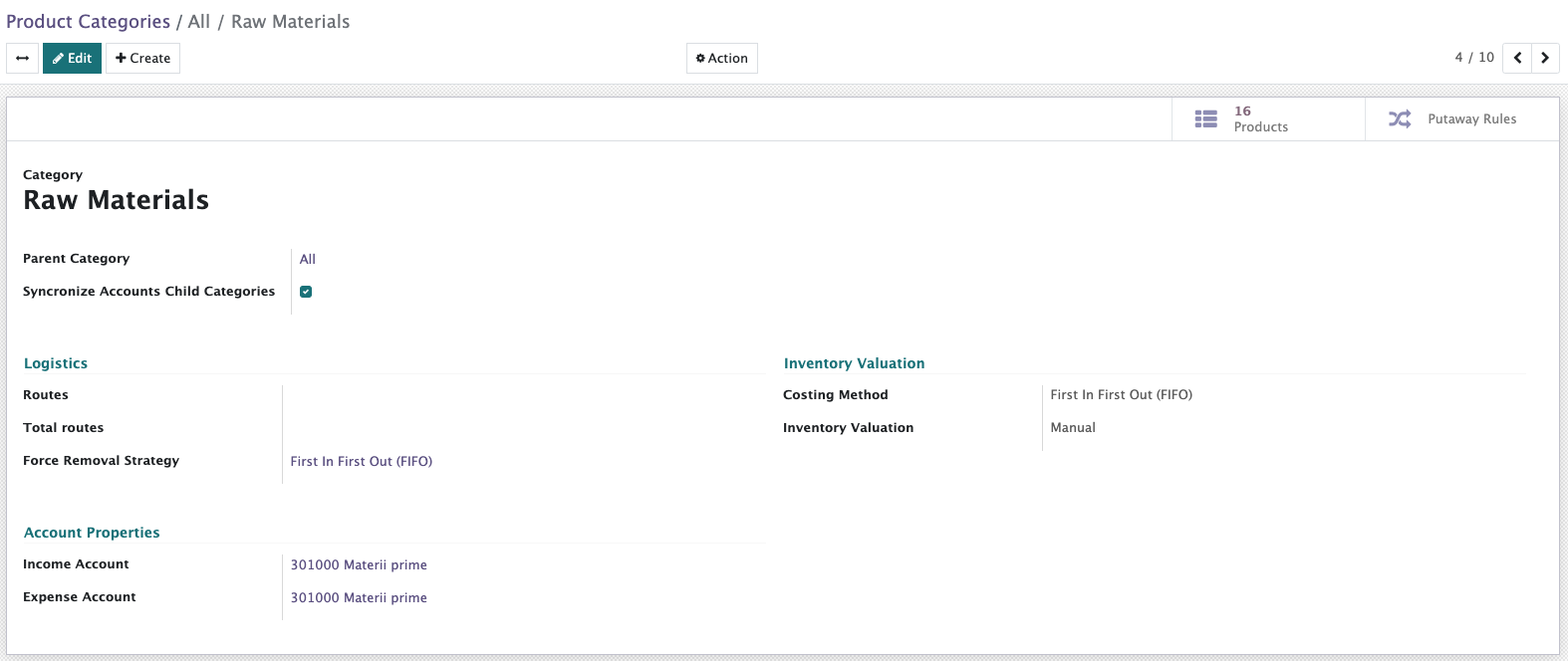
If the Accounting module is installed we can use the checkbox “Synchronize Accounts Child Categories” - it means that all categories will have the same accounts as a parent one.
Input next fields at the Product Category form view:
Category - categorie’s name
Parent category - choose "All" or any other category depending on the specific of the restaurant work flow.
Routes - choose from the list of routes if they exist (affects inventory transfers).
Force removal strategy:
First In First Out (FIFO) - recommended: The product you've had the longest will ship/sell first. This is the most popular model to ensure stock doesn't become outdated or expire.
Last In First Out (LIFO): The newest stock will ship/sell first. This method is not allowed in the United States.
Closest Location: Product ships/sells based on closest storage location.
Reserve Packaging:
Reserve Only Full Packages: if a customer orders 2 packages of 500 units each, and you only have 700 in stock, then only 500 will be reserved.
Reserve Partial Packages: if a customer orders 2 packages of 500 units each, and you only have 700 in stock, then 700 will be reserved.
Costing Method:
First In First Out (FIFO) - recommended
Inventory Valuation:
Manual - only for simple configurations if the company doesn’t use the Accounting app.
Automated - choose on the level of first configuration.
Account Properties:
These fields will be in the Product Category configurations only if the Accounting app is installed.
SMART BUTTONS in the Product Category
Check the screenshot below. The smart buttons at the top of creation form are basically the links to related fuctionality:

Products: shows the number of products within the category.
Putaway rules: takes us to the list of putaway rules for the products from this category:

These rules can be configured to optimize storage space, improve efficiency in picking operations, and ensure that goods are stored in appropriate locations according to factors such as product type, weight, size, expiration date, or any other relevant criteria.