
Create Product Variant
Inventory app > Configurations > Products > Product Variants
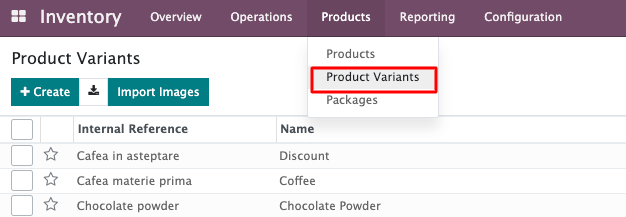
Here we can see a list of existing Product Variants which are displayed as a separate line each. Those Product Templates that were set without Product Attributes and Values will have only one Product Variant by default.
To create new Product Variant:
Inventory app > Configuration > Attributes:
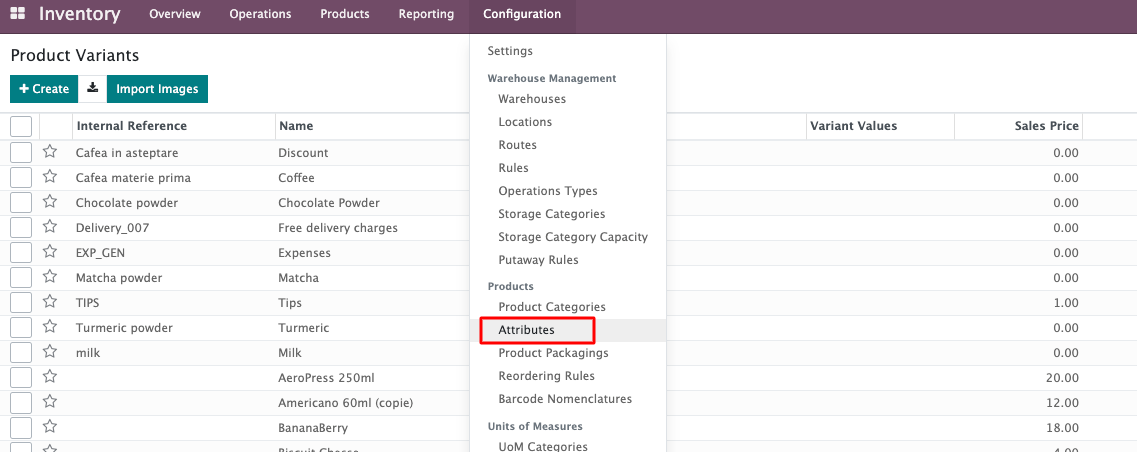
Click on the button to create a new attribute.
It will open a form view:
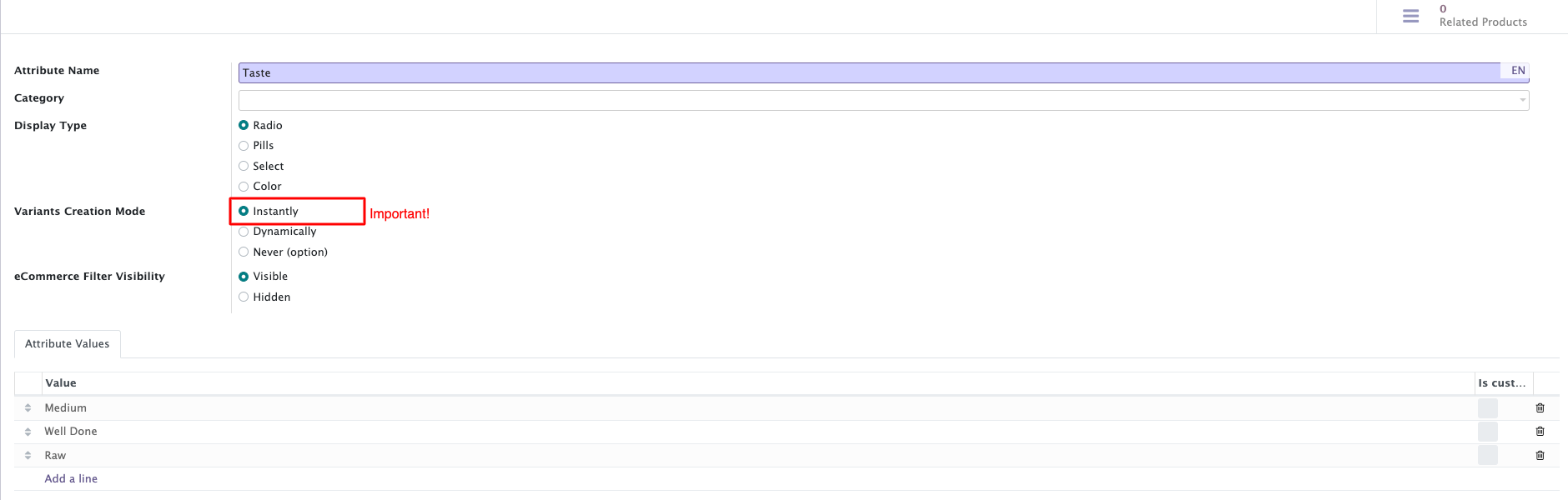
Attribute name
Name the attribute (f.e. “Size”, “Color”, “Type”, “Taste” etc.)
Category
Sort the attributes by Categories if required.
Display Type:
We leave it by default.
Variants Creation Mode
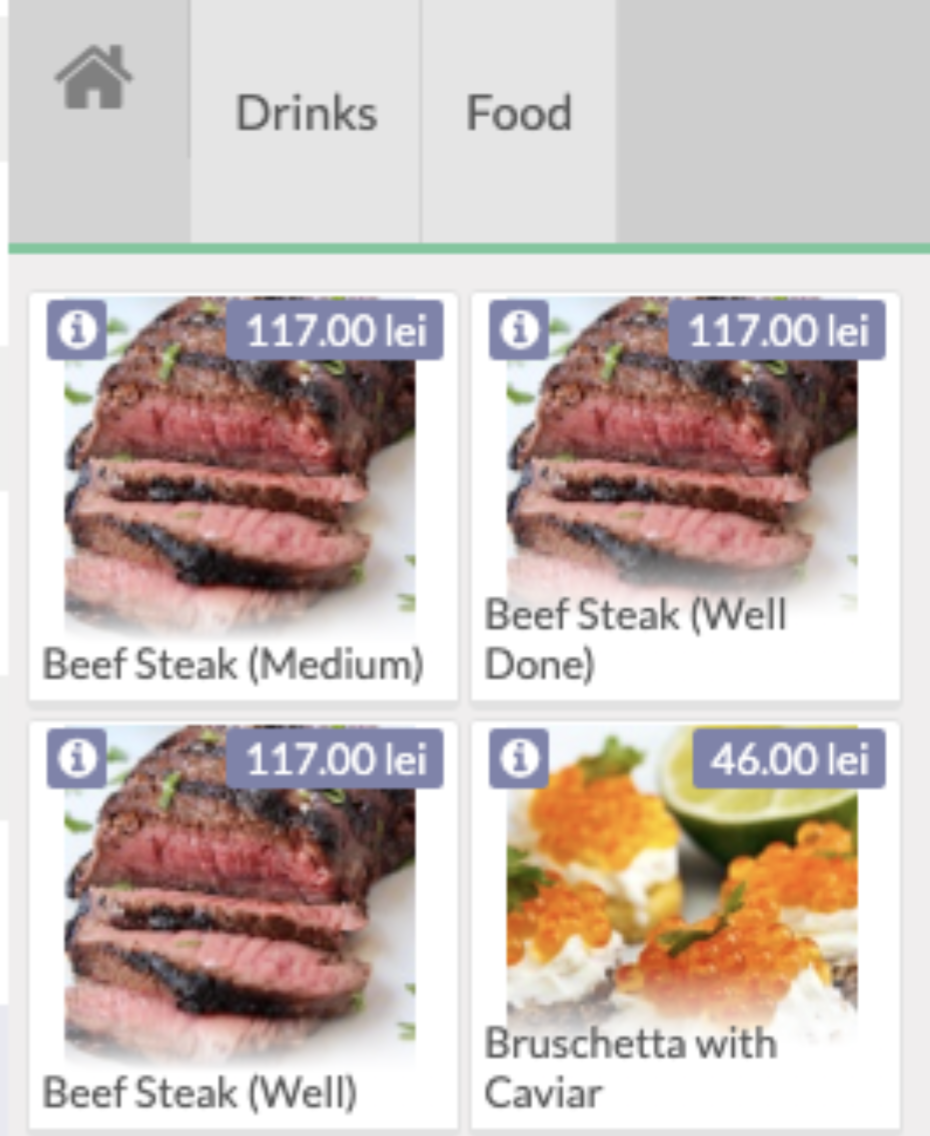
Instantly (recommended) - shows Product Variants as a separate product at PoS UI. We recommend to choose this Creation Mode because it will be easy to create BoM for each variant separately and choose different ingredients for BoM.
Dynamically (not recommended): for example, if you have attributes for Size and Color with several values each, Odoo can automatically create variants for each unique combination (e.g., Small-Red, Medium-Blue, Large-Green).
Never (not recommended): - will display only one product template at PoS UI, click on it will open a selection of the Variants.
eCommerce Filter Visibility
Decide here if the respective attribute will be visible on the website (custom value means auto selection or not when product is added by the end user).
Attribute Values Tab

Here we can add the Values for the Attribute or delete them.
Set as custom - When you mark an attribute value as "Set as custom," you're indicating that this value is not part of the standard list of predefined values. It signifies that the value is added or customized specifically for a certain product or context.
To add cost to the Product Variant:
Inventory > Products > Products > Attributes & Values Tab:
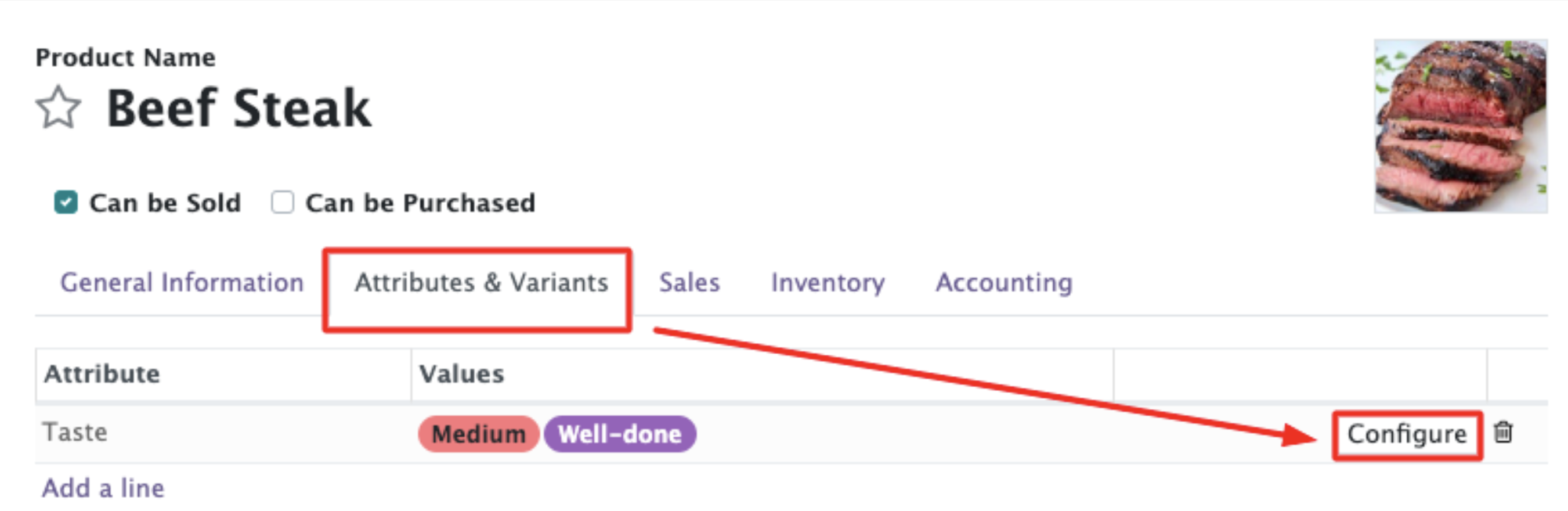
Choose “Configure” button from the “Attributes and variants” tab > this way allow to set different prices for each attribute:

Each Product Template that contains Product Variants will display smart button “Variants” at the top of Product form view:
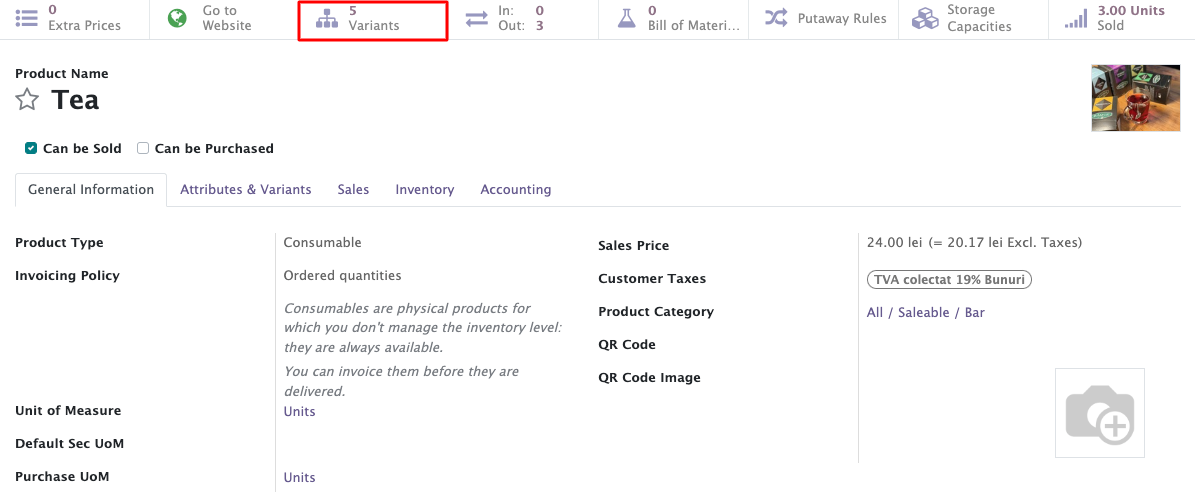
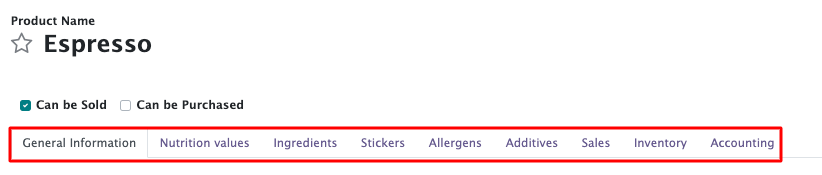
Form View of the Product Variant contains next Tabs:
General Settings Tab contains the same fields as the Product Template.
Sales price will be changed according to configuration of Variant automatically.
Sales Tab contains the same fields as the Product Template, except:
additional field “Bonus Category” will appear:

Purchase, Inventory, Accounting tabs - will be similar to Product Template.
Nutrition Values, Ingredients, Stickers, Allergens, Additives tabs - depend on the configuration of Nutrition Values.